Managing RamAlert Notifications
Creation date: 8/19/2026 10:38 AM
Updated: 8/19/2026 3:12 PM
RamAlert is a service that provides Bluefield University students, staff, faculty, and family members with important updates on campus events and operations. This Knowledgebase article will provide step-by-step instructions on setting up and modifying your RamAlert registration.
Enrolling Through Text Message
Text enrollment is available for students. To enroll a parent's or guardian's phone number, see the Enroll a Parent's, Guardian's, or Secondary Phone Number section.
- Text #BluefieldRams to 22300
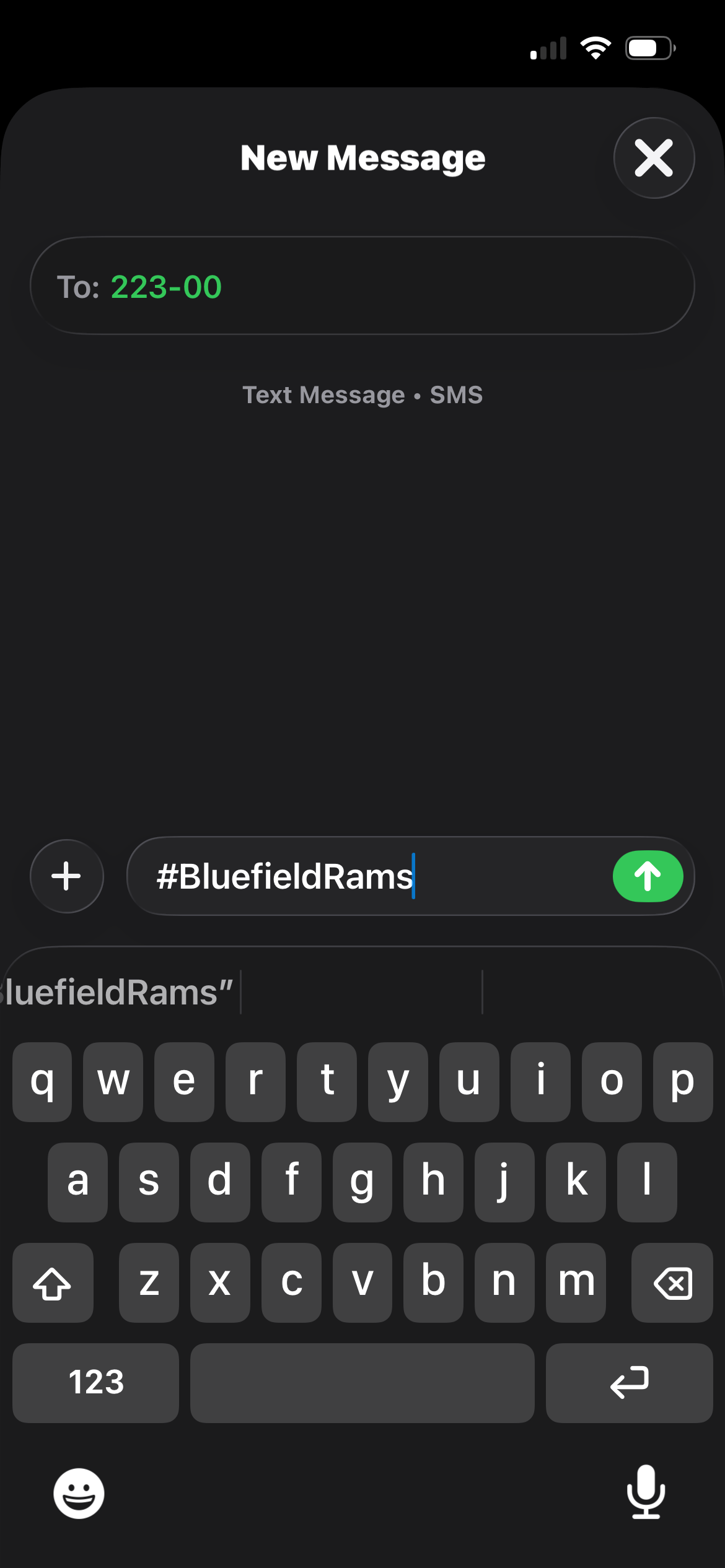
- Click the provided link.

- Fill in any missing contact information.
- Phone 1 and Email 1 should belong to the student.
- Phone 2 and Email 2 are optional and may belong to a parent or guardian.
- Verify that Receive text messages is checked.
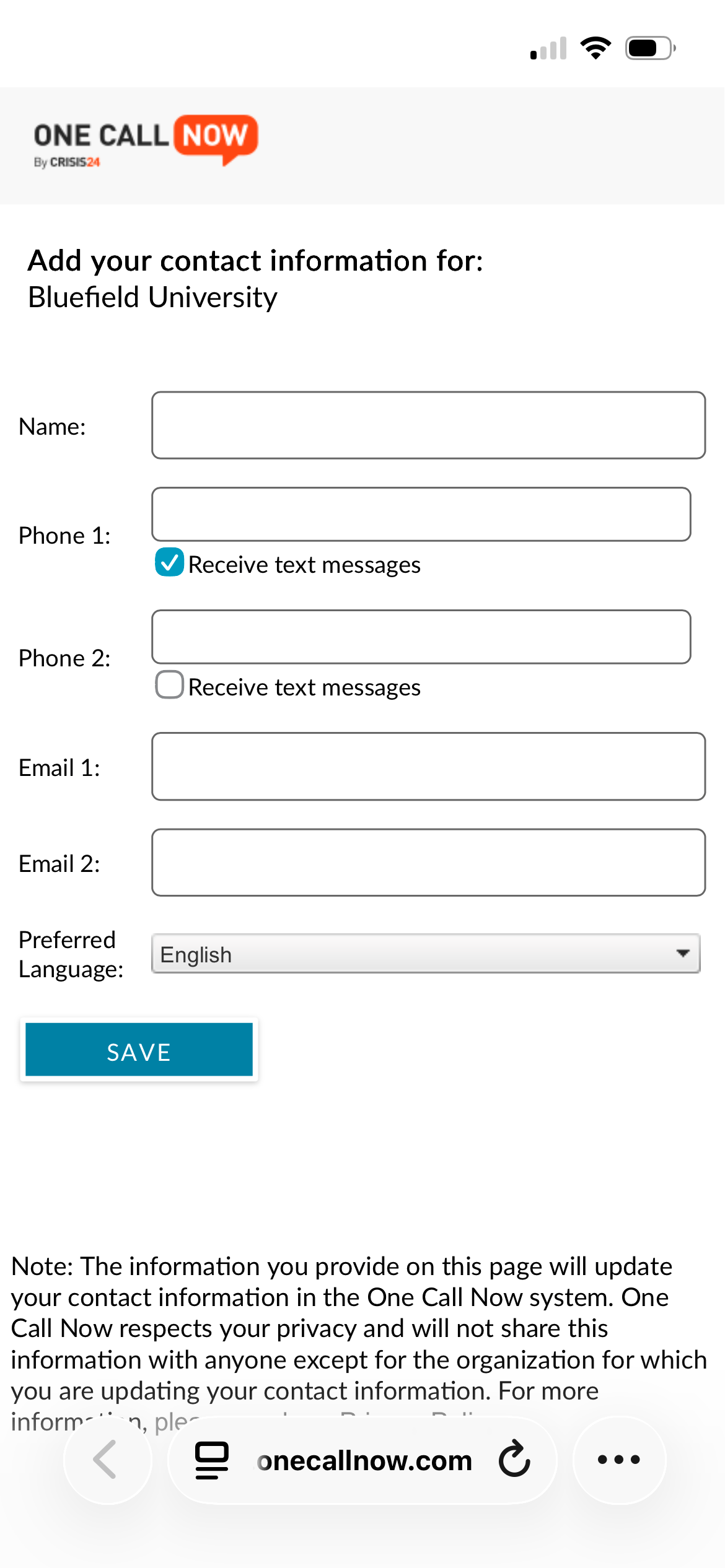
- Tap Save.
- Verify your email address(es) using the link(s) emailed to you by One Call Now.

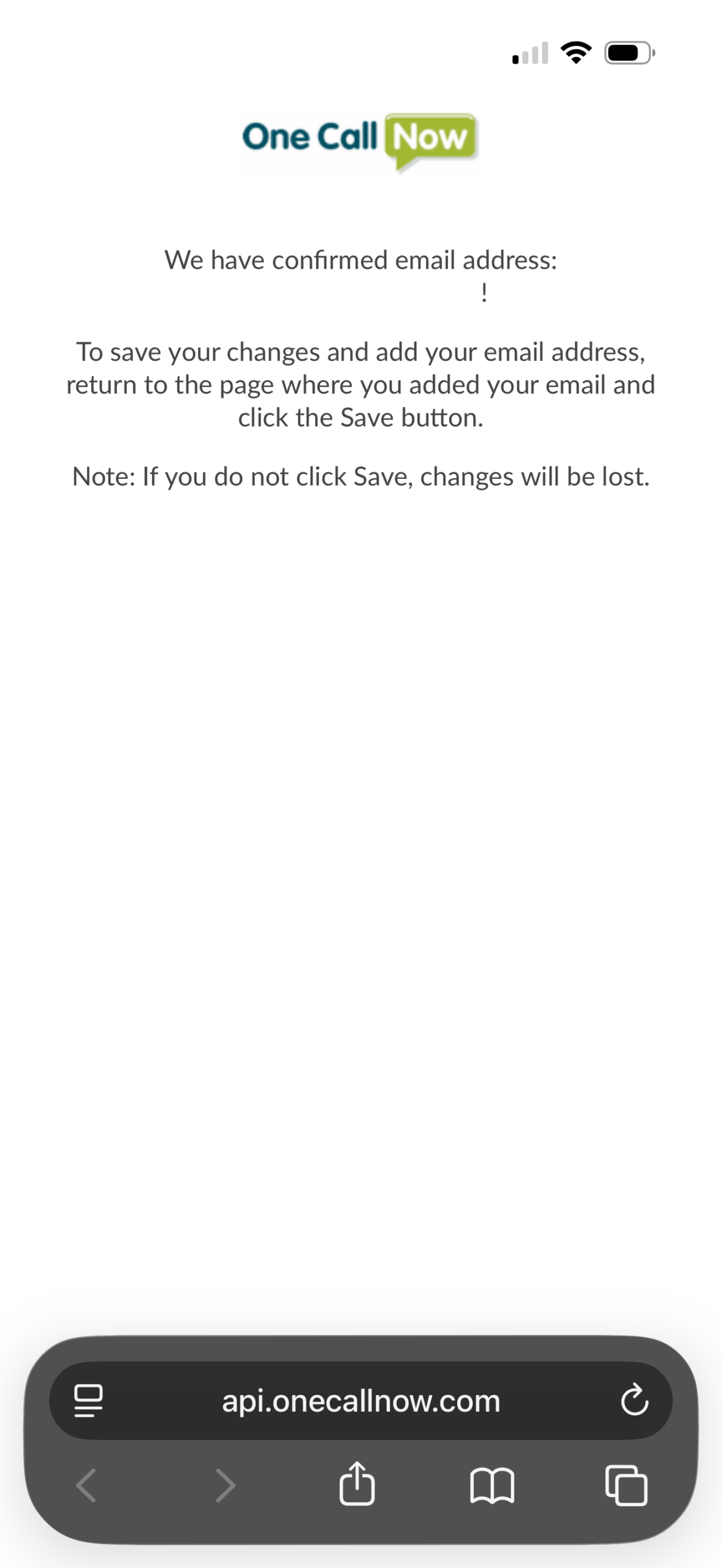
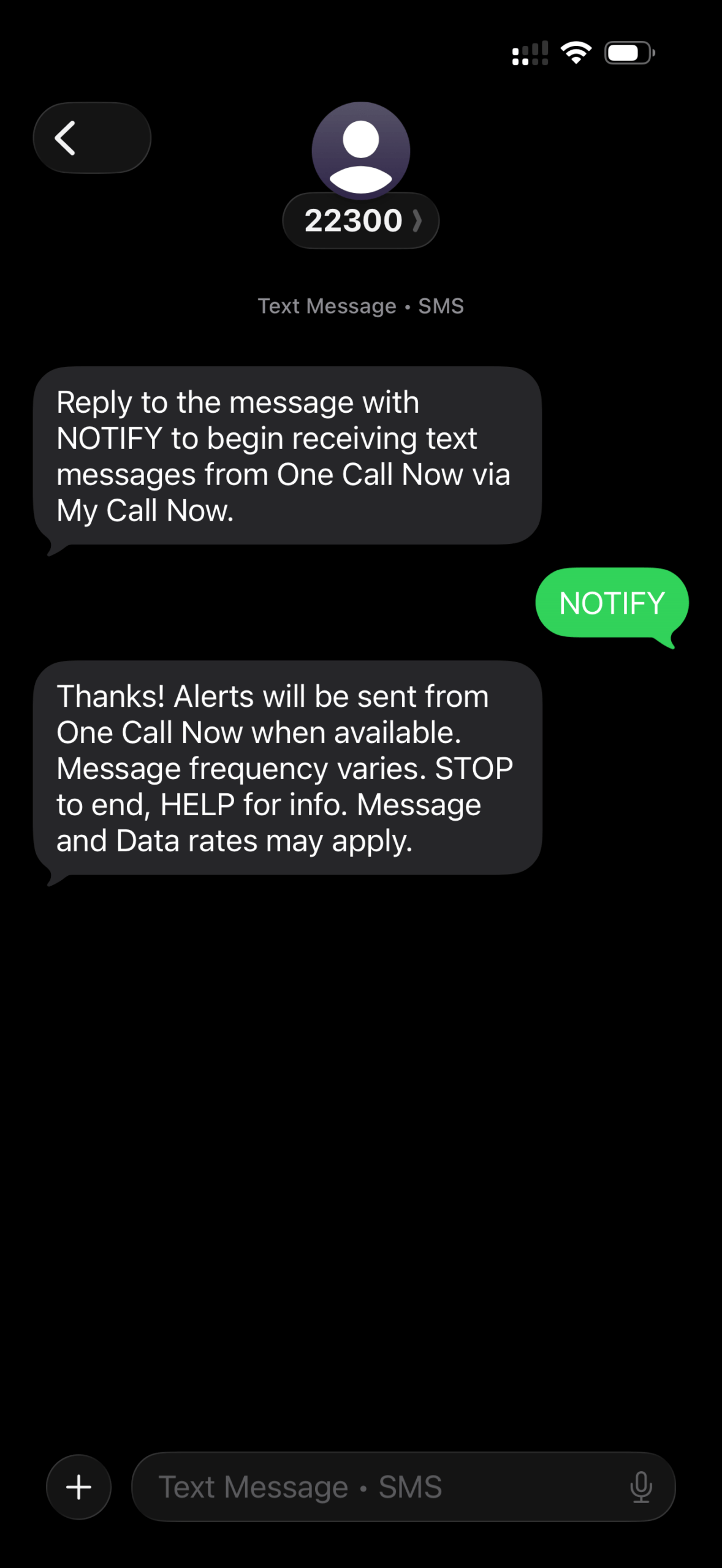
- If you entered a second phone number, verify that number by replying NOTIFY to the text from One Call Now.
Enroll with the Online Portal
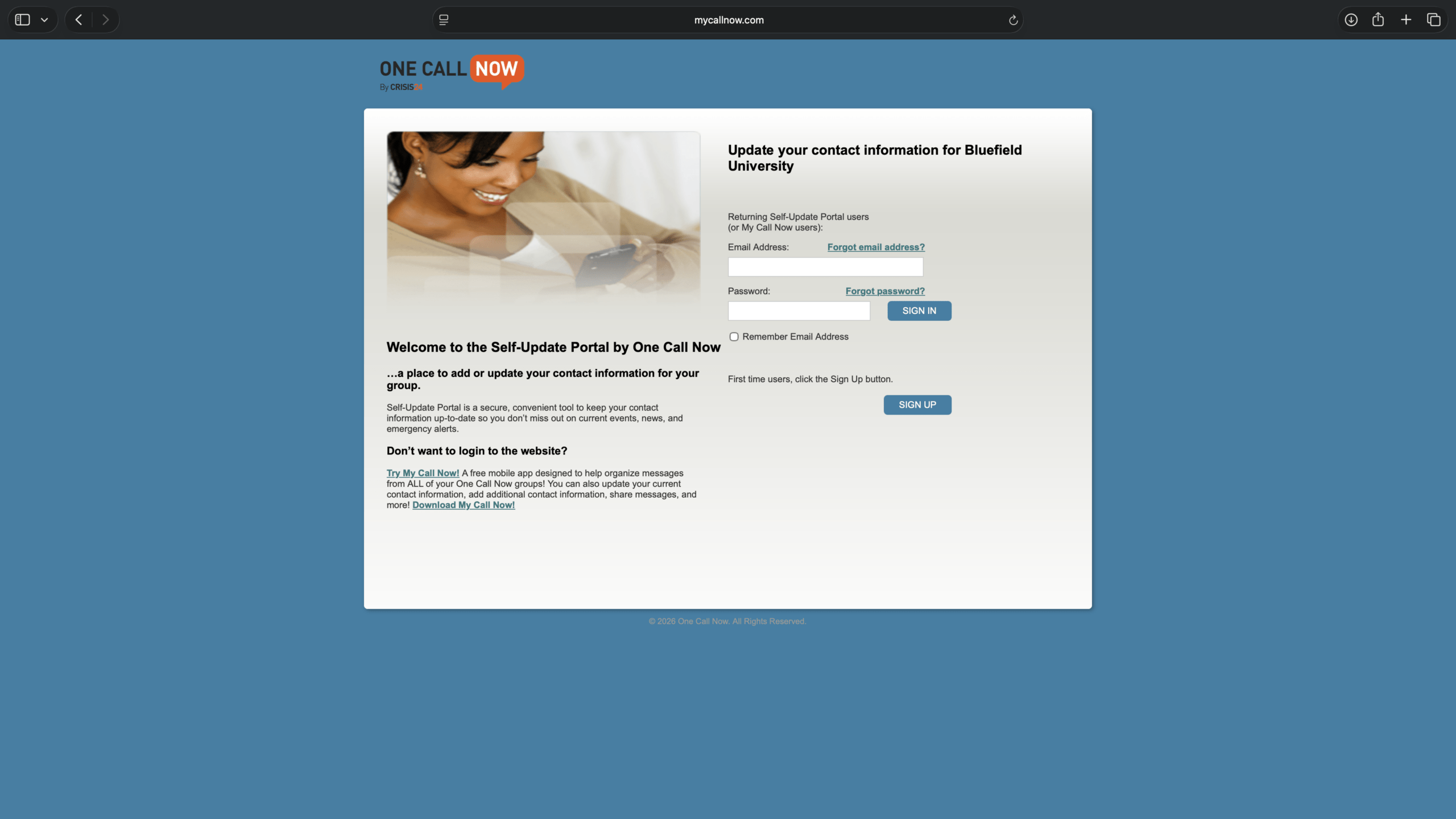
- In a web browser, go to the One Call Now Sign-Up Portal and click Sign Up.
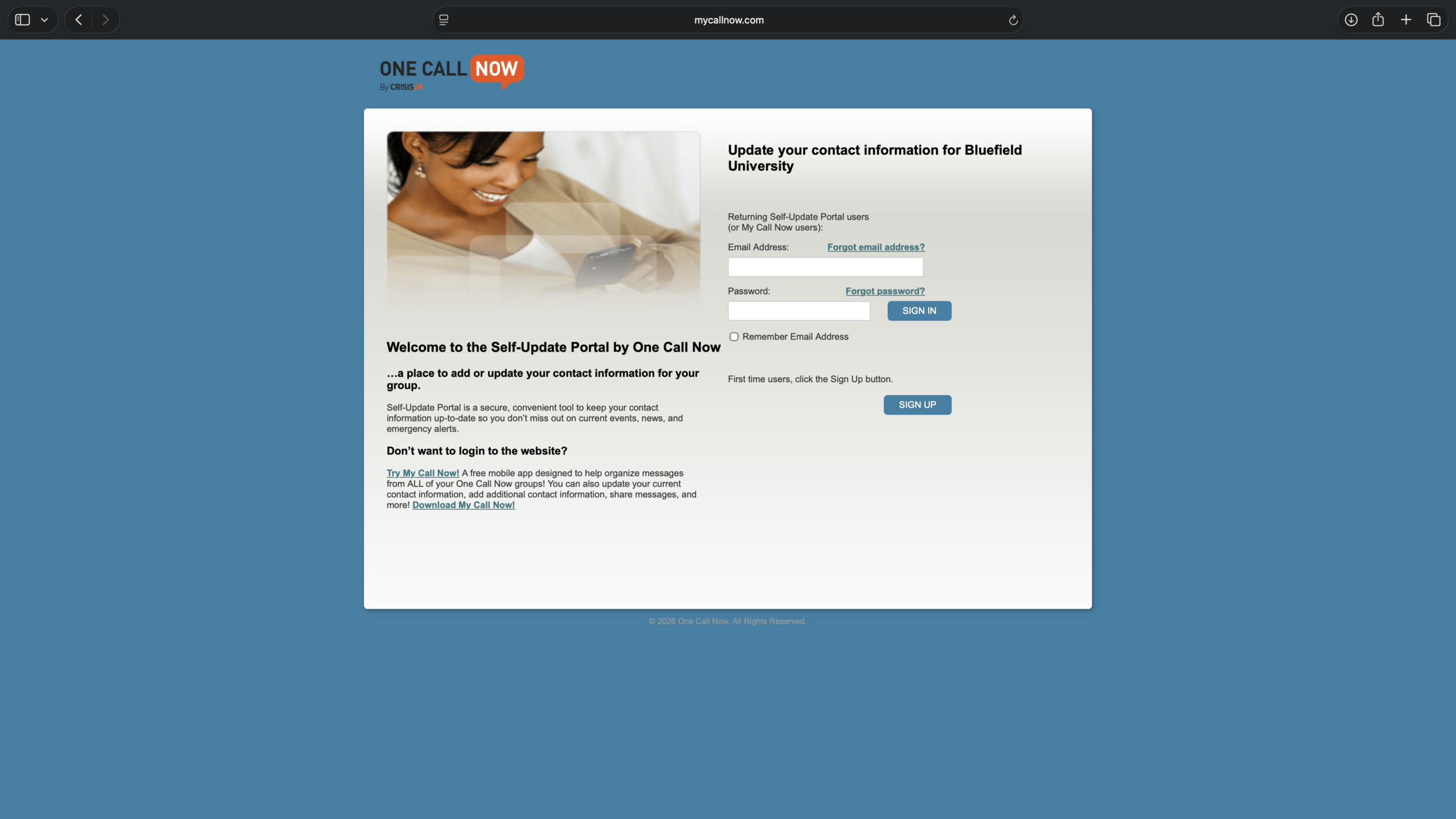
- Enter the student's name, phone number, and email address. Create a password. Verify Receive Text Message and I accept the Terms of Use are checked. Click Save.
- If you already enrolled with text, input the phone number you texted from, as well as the address you entered for Email 1 at the enrollment completion link texted to you.
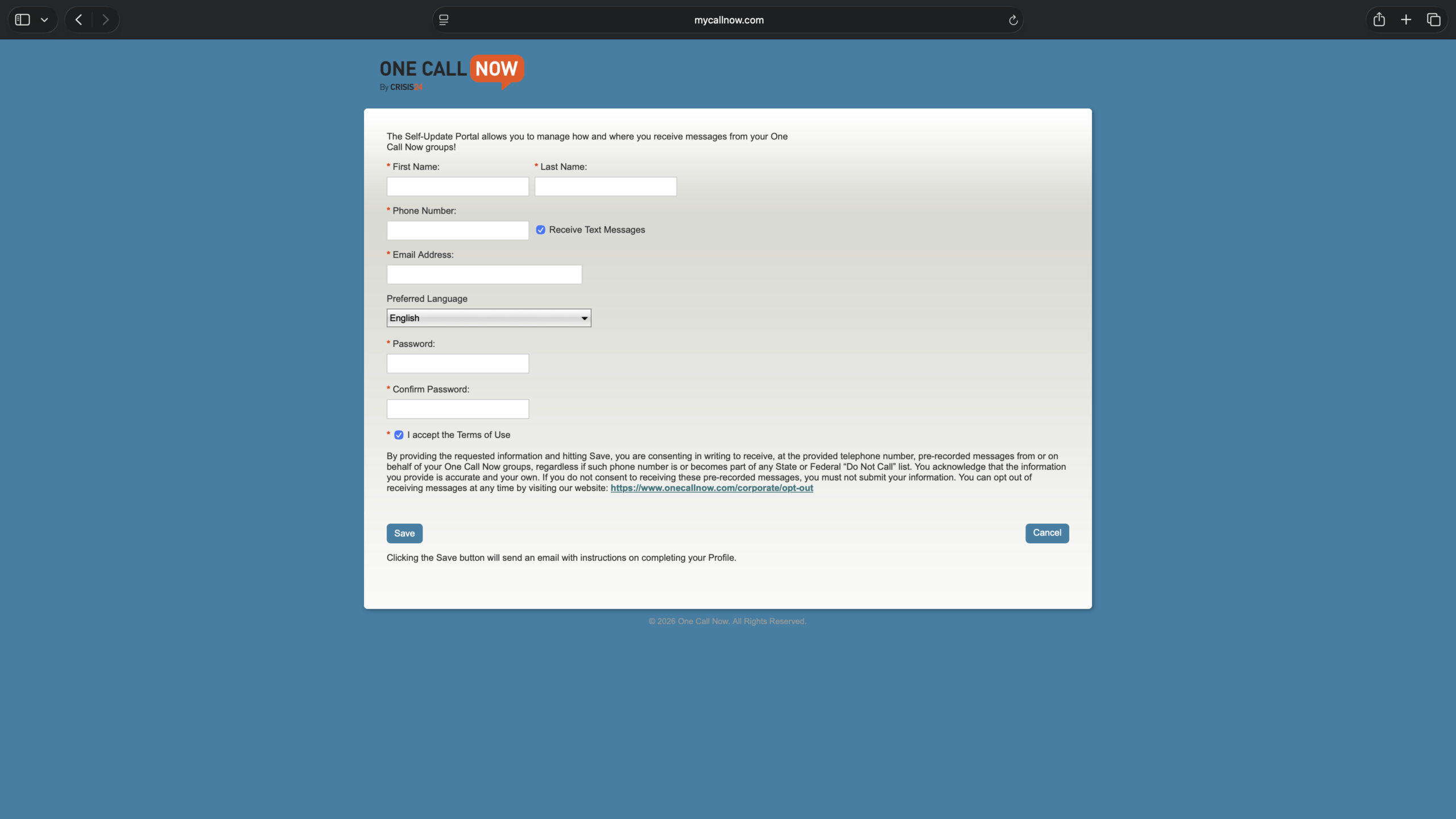
If you have already enrolled through text, you may be able to skip to the next step in the browser.
- Verify your email address using the link emailed to you by One Call Now.
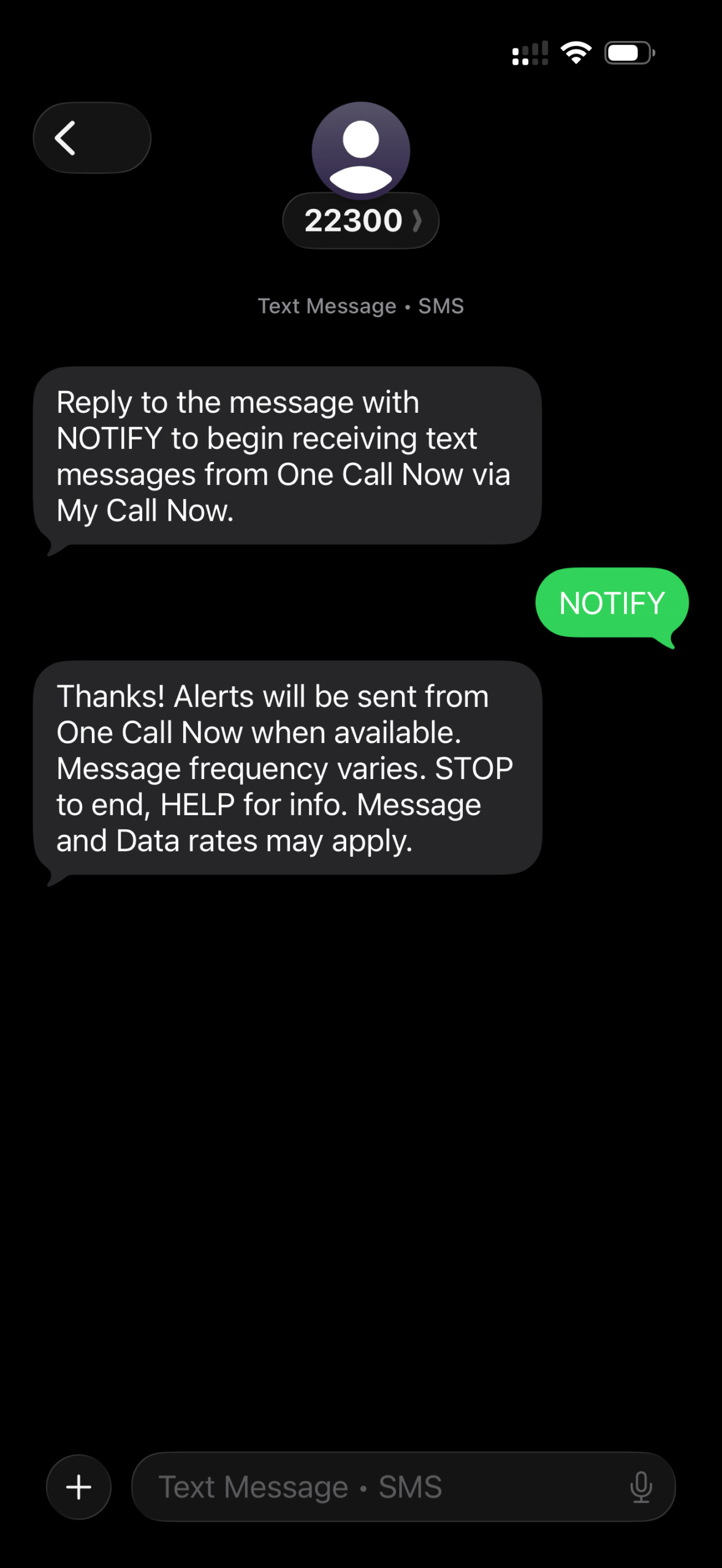
- Verify your phone number by replying NOTIFY to the text from One Call Now.
- Back in your web browser, enter the verified email address and the password you created. Click Sign In.

If you receive the message, No organizations are associated with the email address you verified, complete each step. If not, skip to entering the invitation code.
- Next to Looking for other groups to join, click Search.

- Enter the organization (Bluefield University), city (Bluefield), state (VA), and/or ZIP (24605). Click Search.

- Next to Bluefield University, click Join.
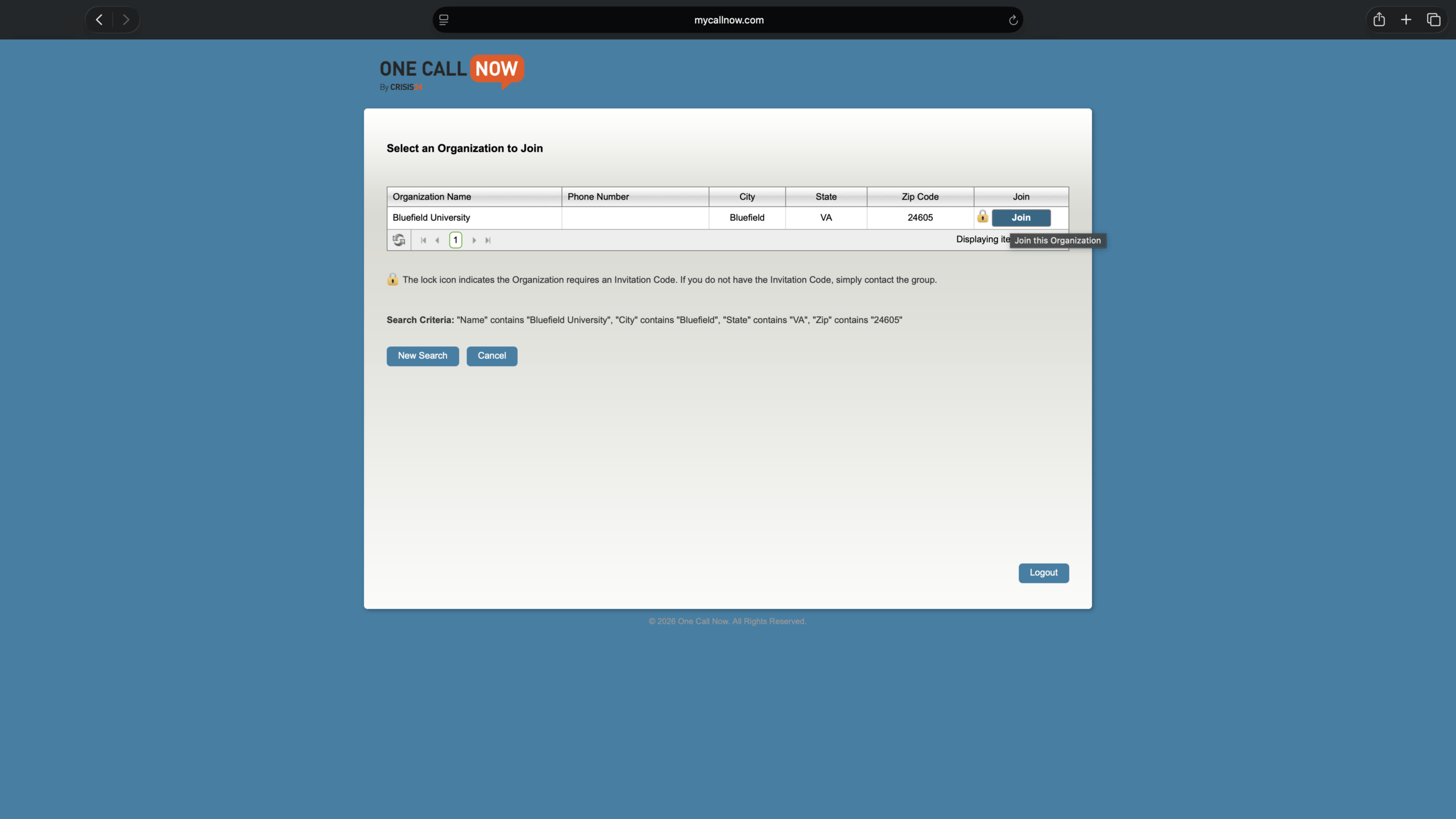
- Enter the invitation code, 7267 (RAMS). Click Join.
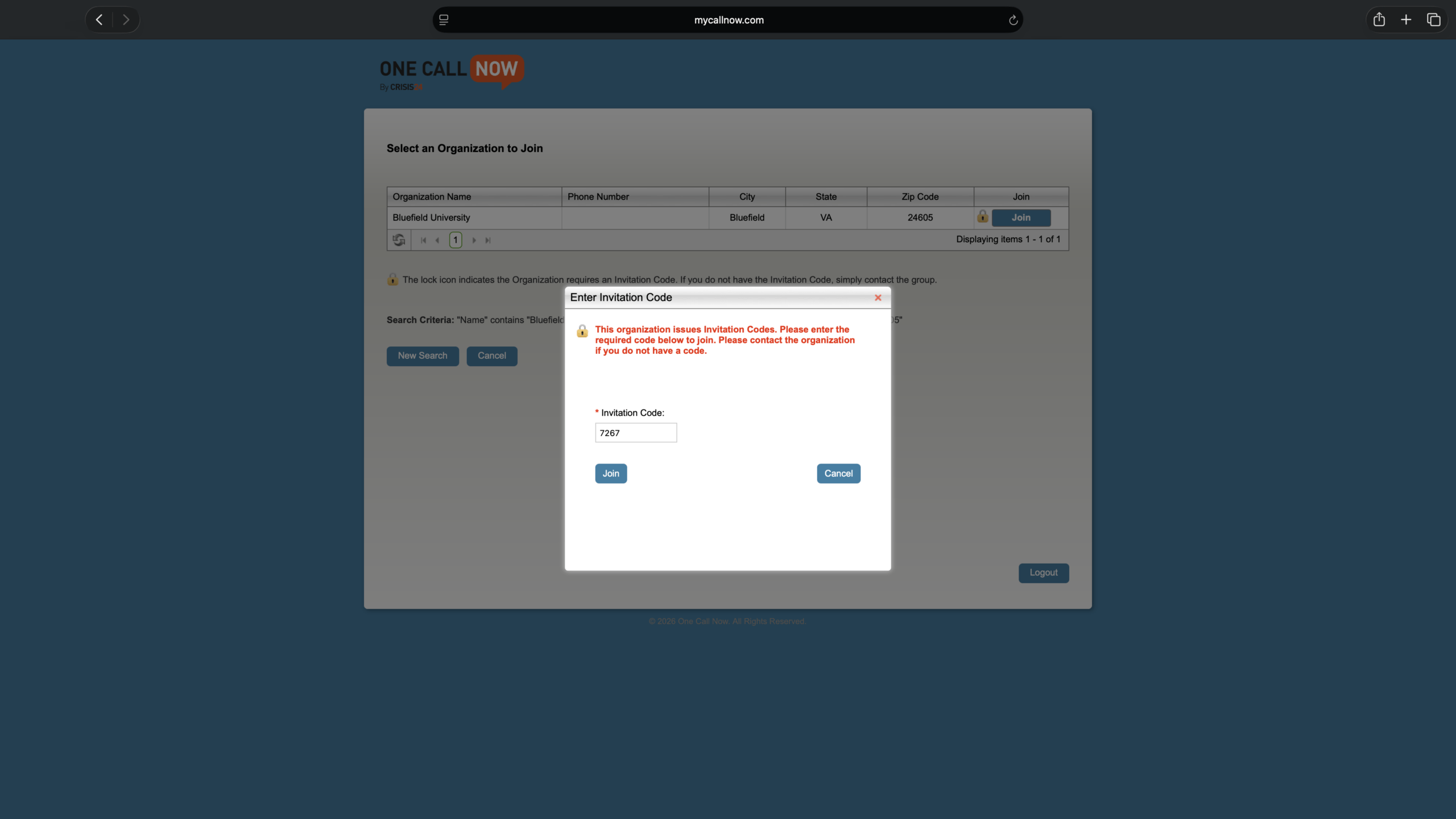
If you receive the message You are not yet a member of this group, complete the next step.
- Under Verified Connections, click Add to Group for each phone number and email address.
- Ensure the Sequence Order is set to 1 for the student's contact information.
- Verify Receive Texts is checked.
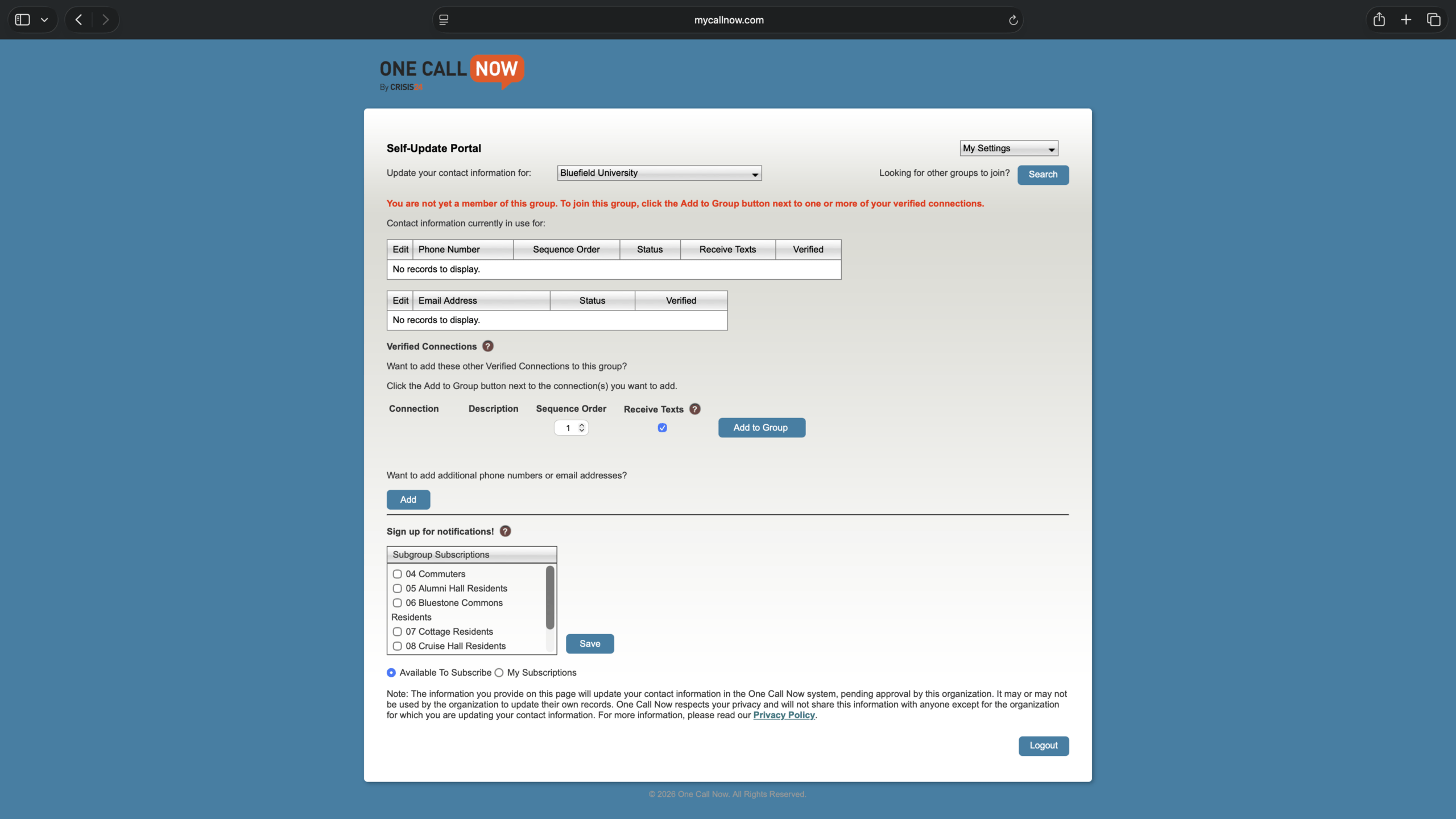
Enroll in Dorm-Specific or Class-Specific Alerts
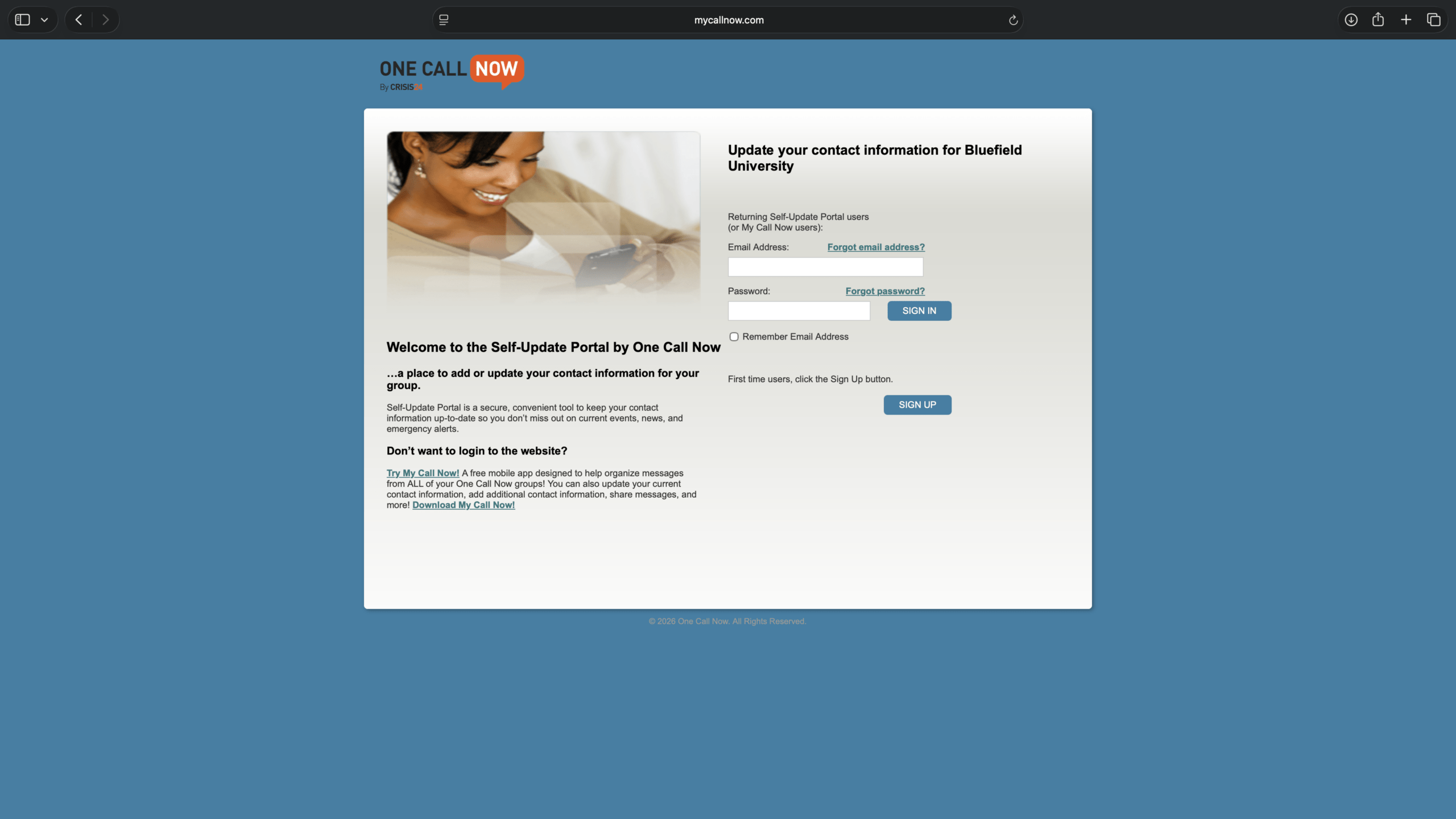
- In a web browser, go to the One Call Now Sign-Up Portal and sign in.
- If you haven't already, complete the steps in the Enroll with the Online Portal section.
- Under Subgroup Subscriptions, check the subgroup(s) relevant to you.
- Subgroups may be available for commuters, each residence hall, and each commencement ceremony.

- Click Save.
Enrolling a Parent's, Guardian's, or Secondary Phone Number.
- In a web browser, go to the One Call Now login portal and click Sign In.
- If you haven't already, complete the steps in the Enroll with the Online Portalsection.
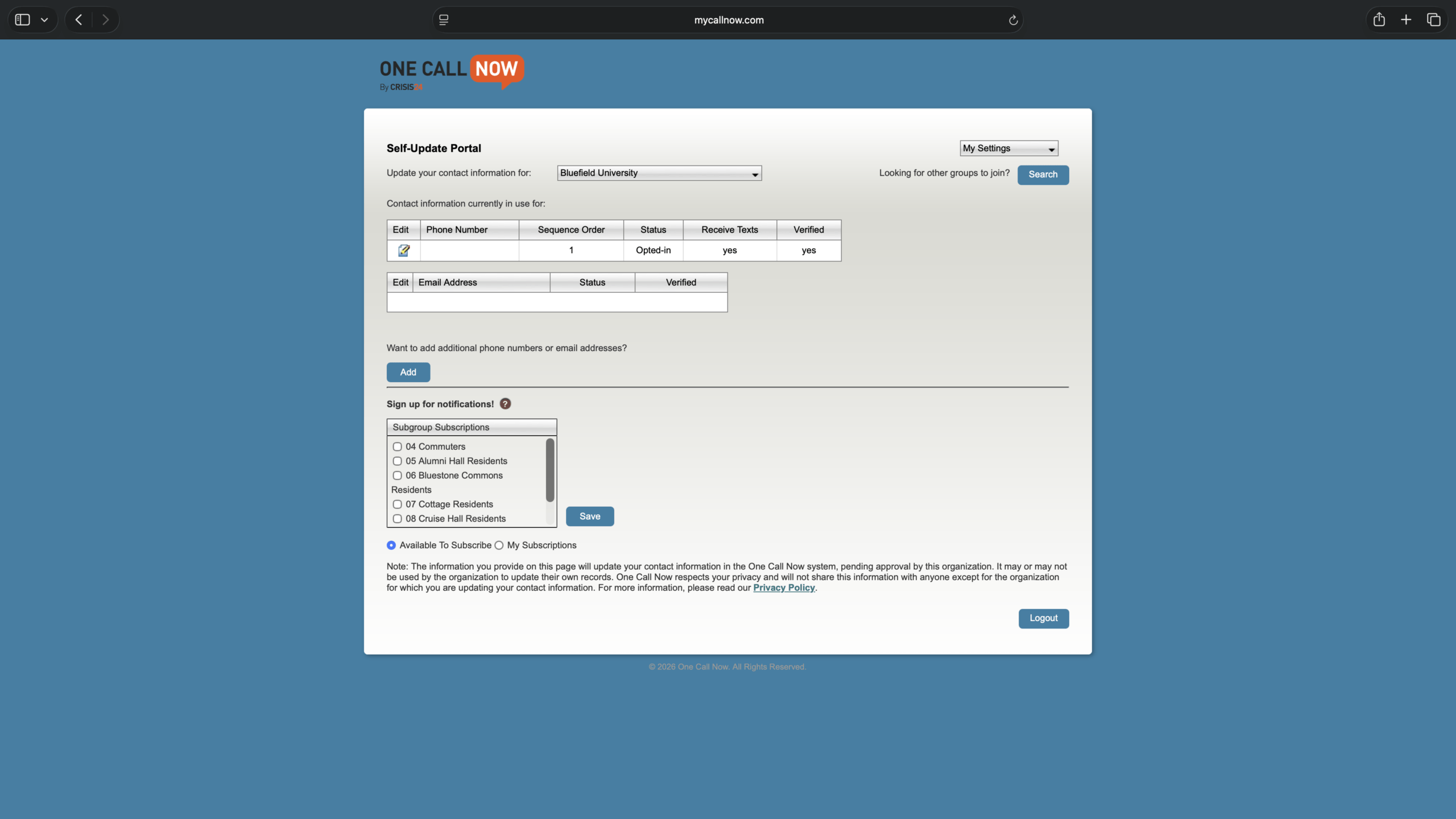
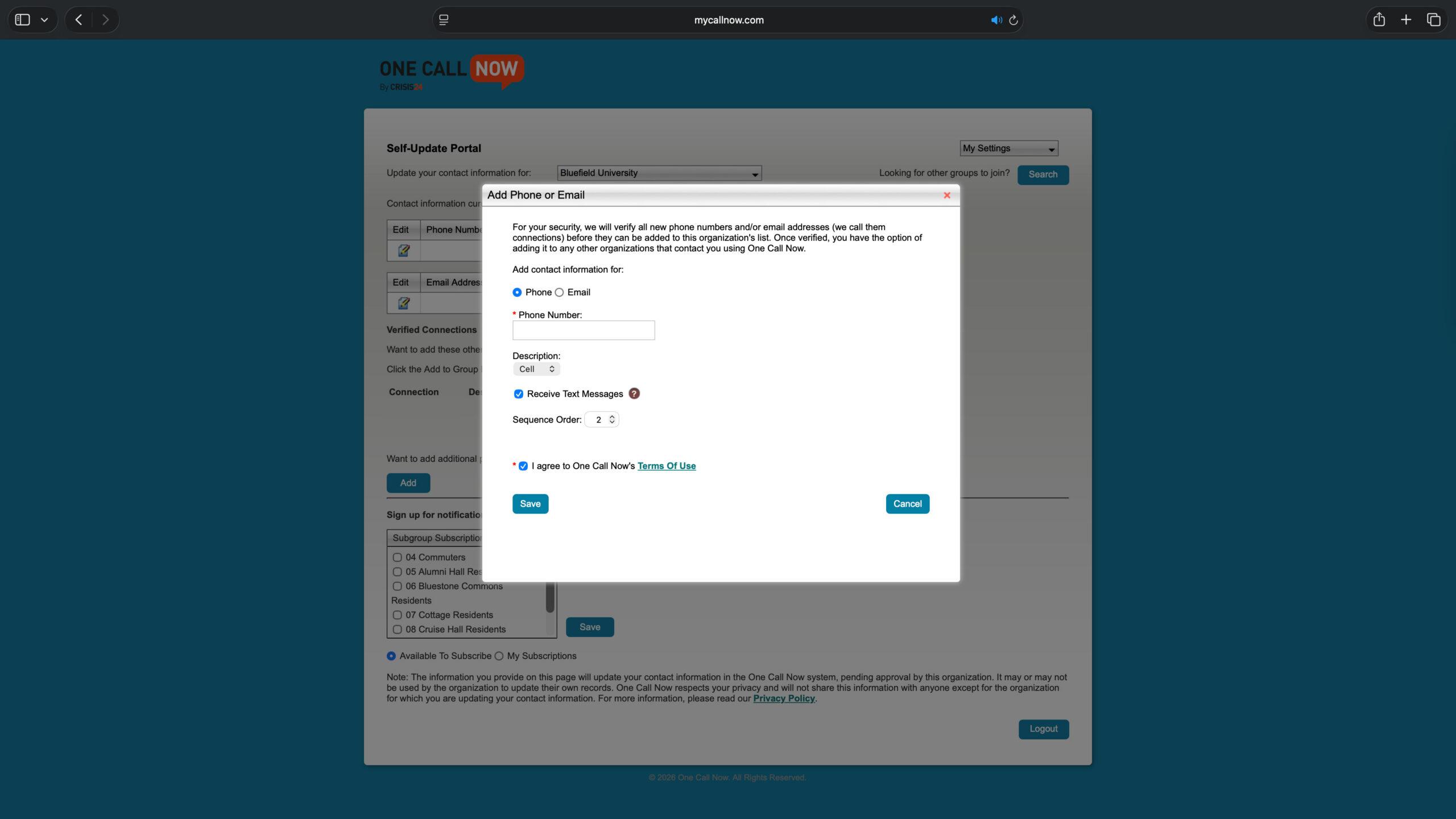
- Under Want to add additional phone number or email addresses, click Add.
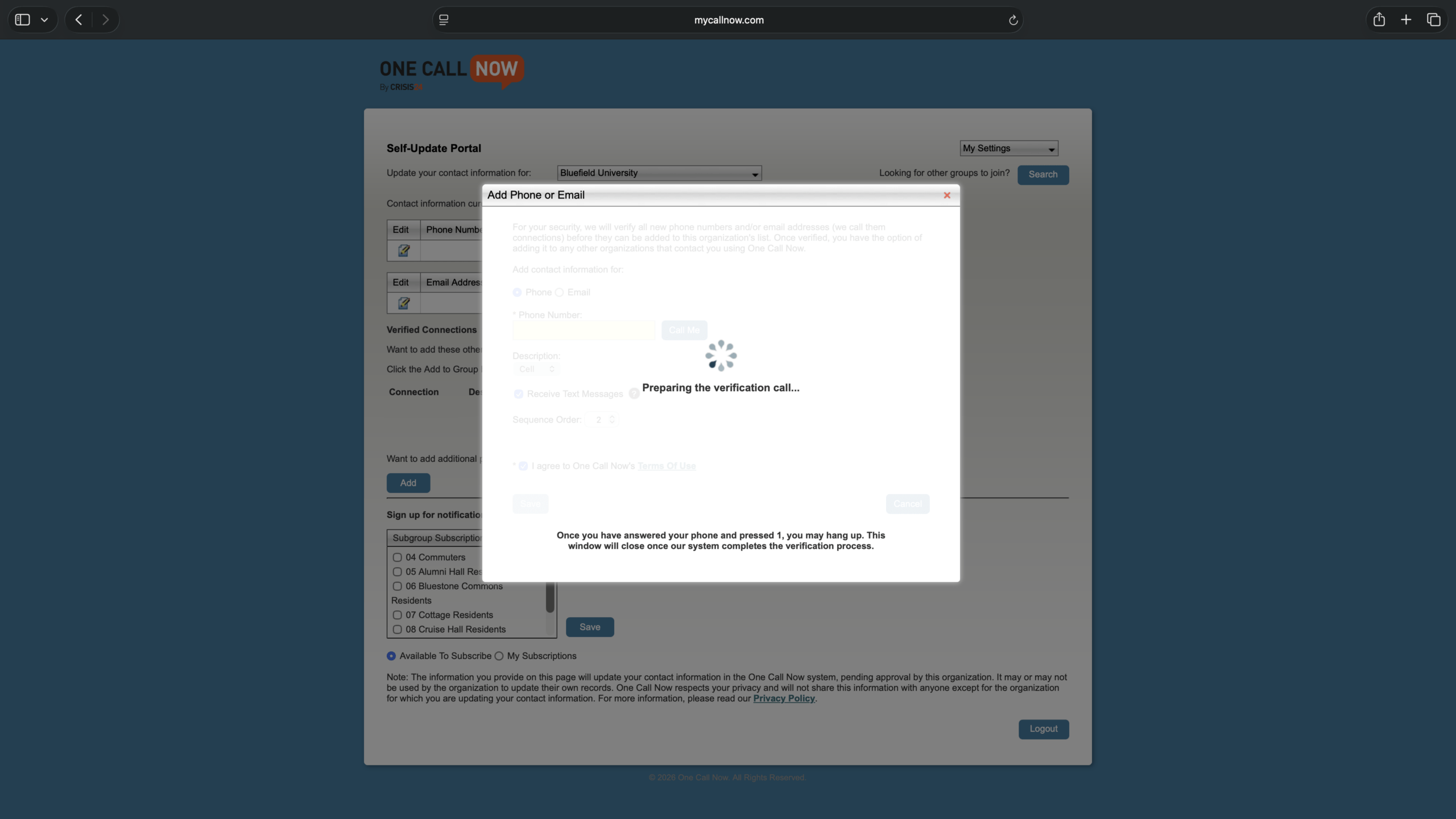
- Under Add contact information for, verify Phone is selected. Enter the phone number.

- Click Call Me.
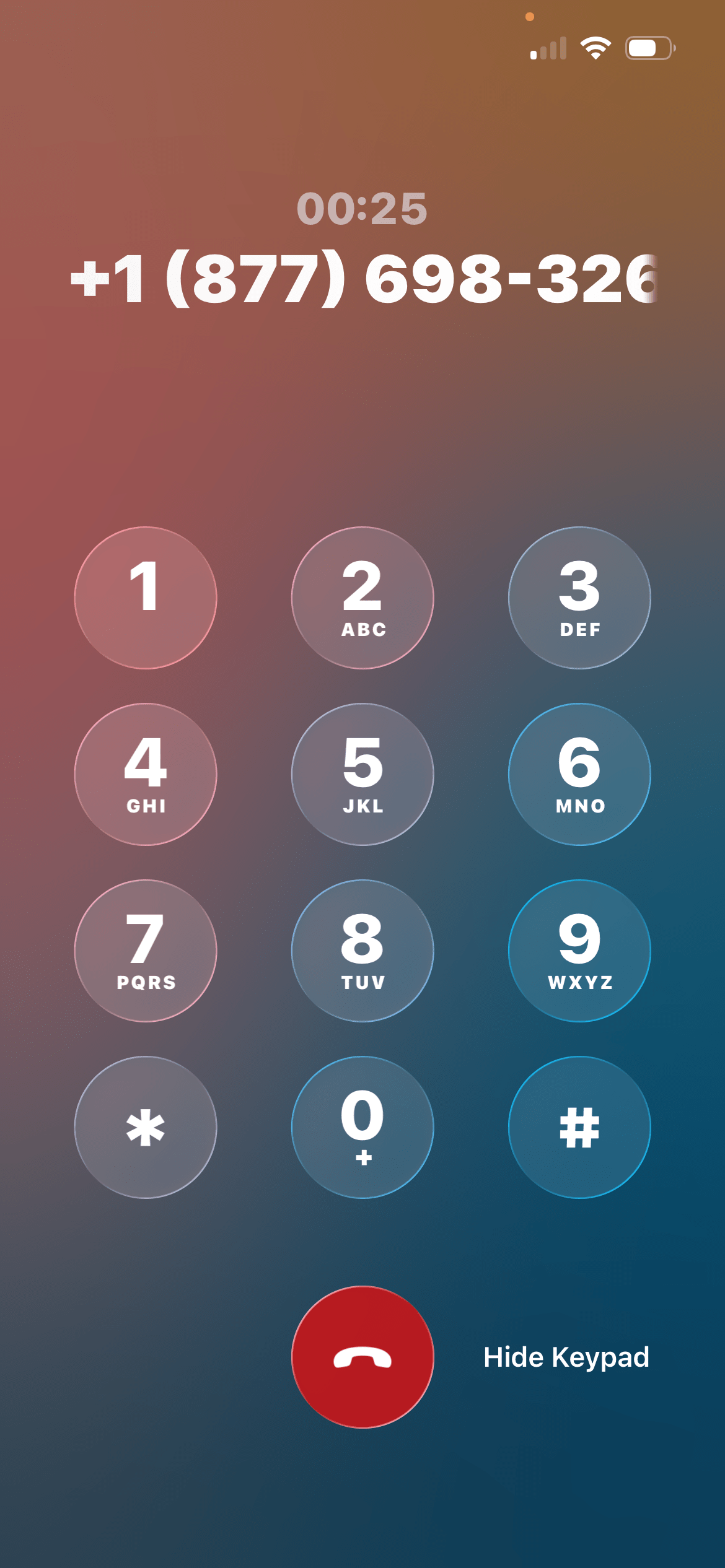
- Answer the call from One Call Now. Press 1 to verify the number, then end the call.

- Verify Receive Text Messages, and I agree to One Call Now's Terms of Use. Ensure the sequence order number is 2 or higher. Click Save
Enrolling a Parent's, Guardian's, or Secondary Email Address
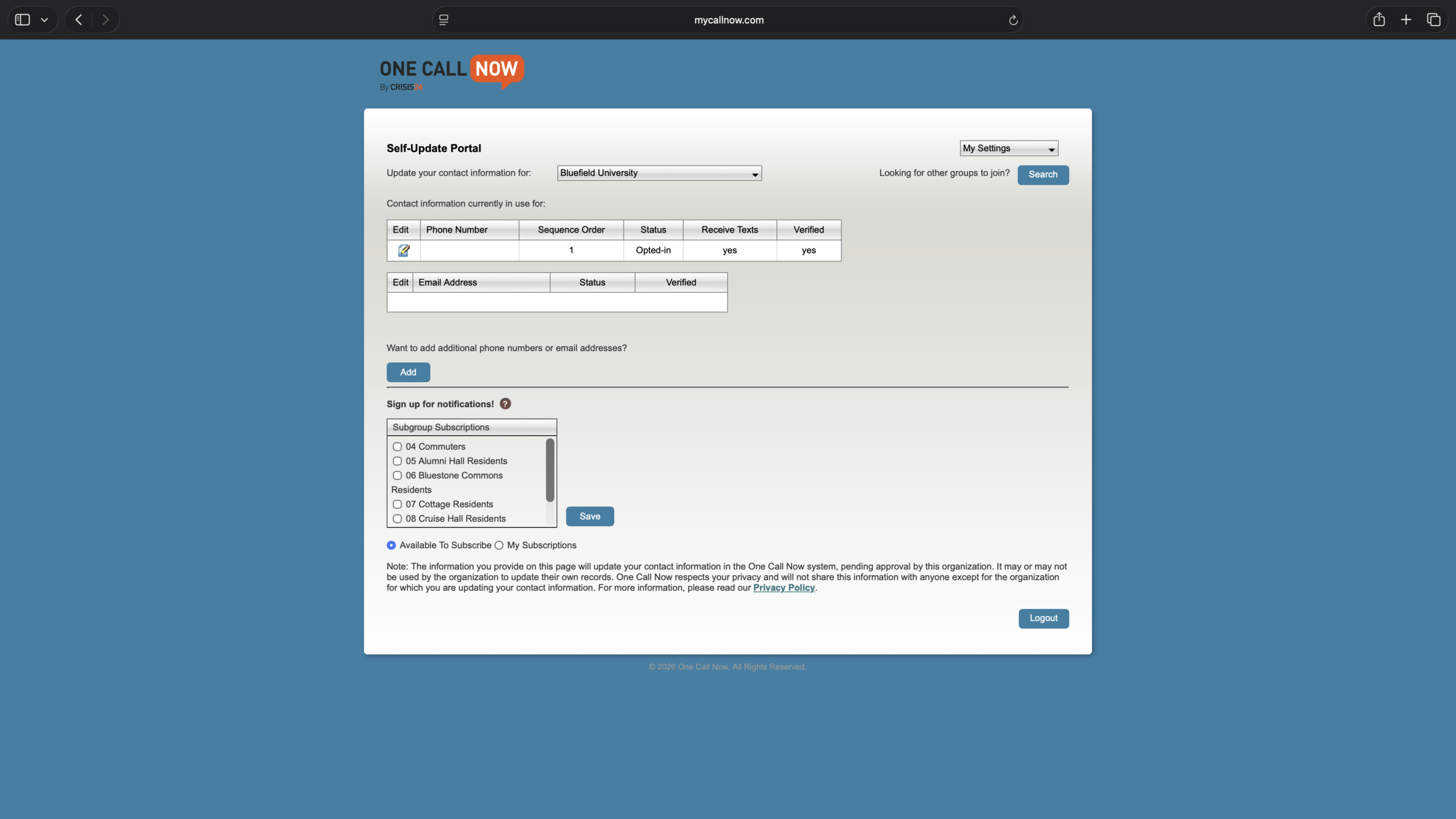
- In a web browser, go to the One Call Now login portal and click SignIn.
- If you haven't already, complete the steps in the Enroll with the Online Portal section.
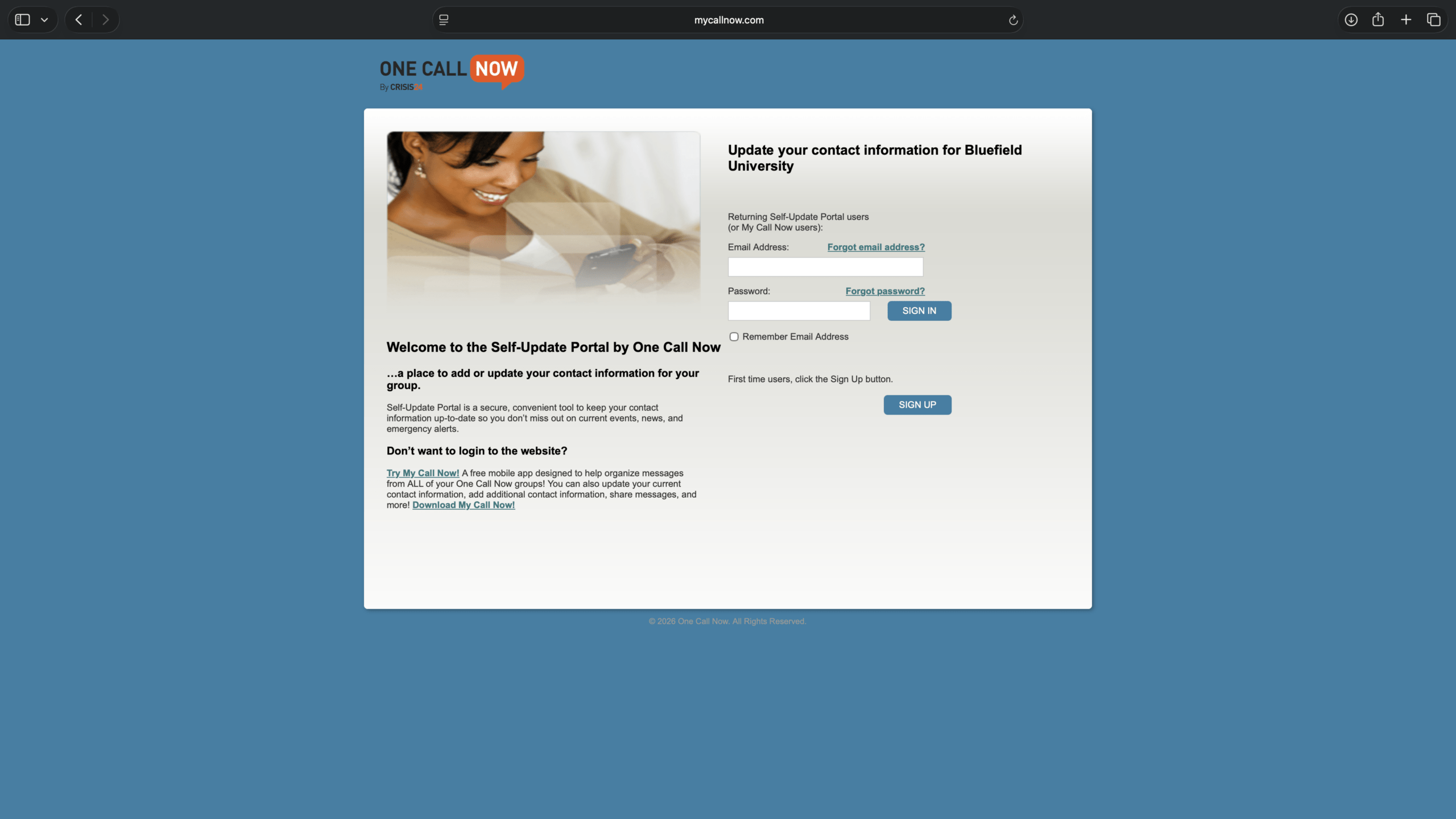
- Under Want to add additional phone numbers or email addresses, click Add.
- Under Add contact information for, select Email. Enter the email address.
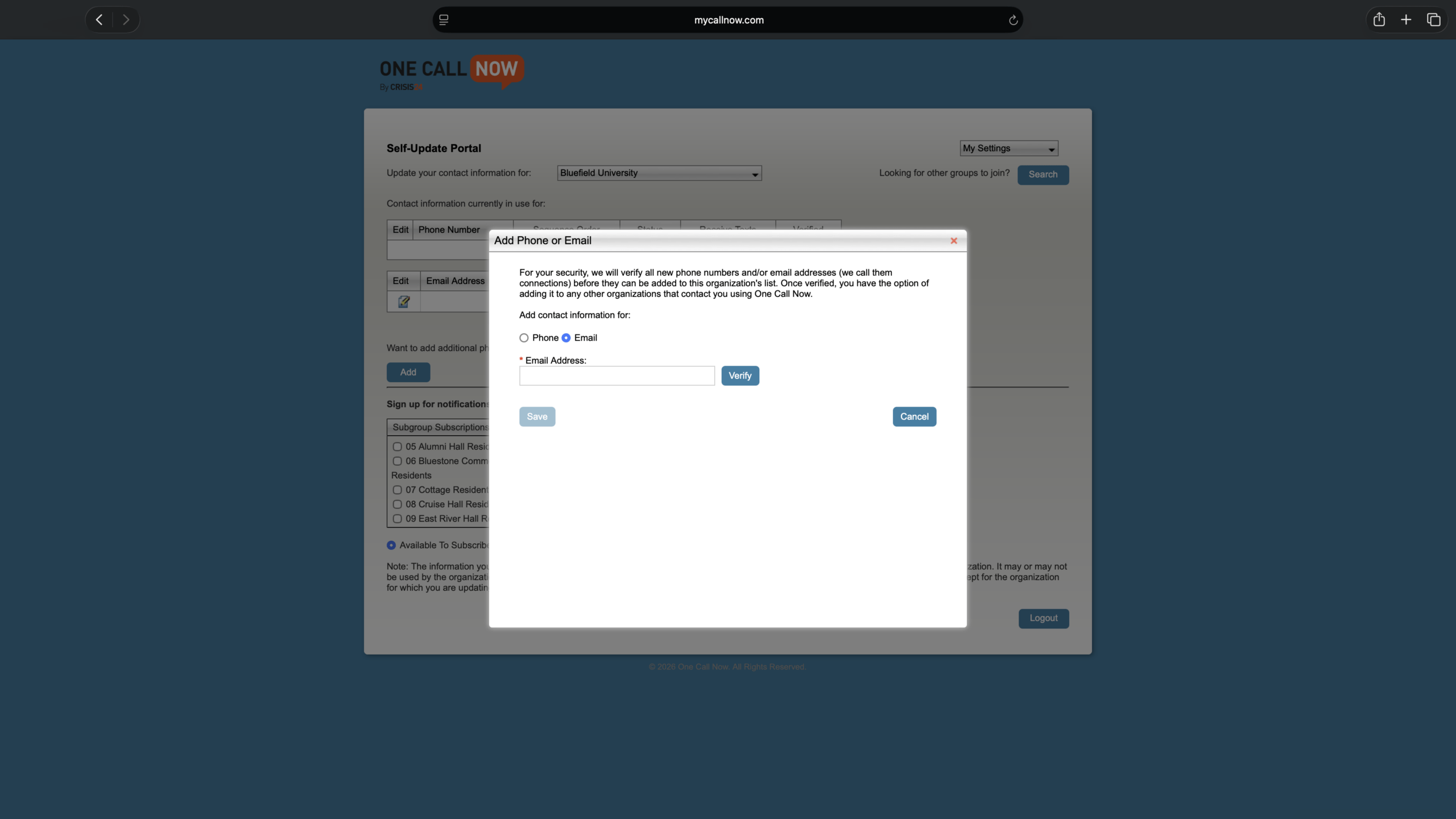
- Click Verify.
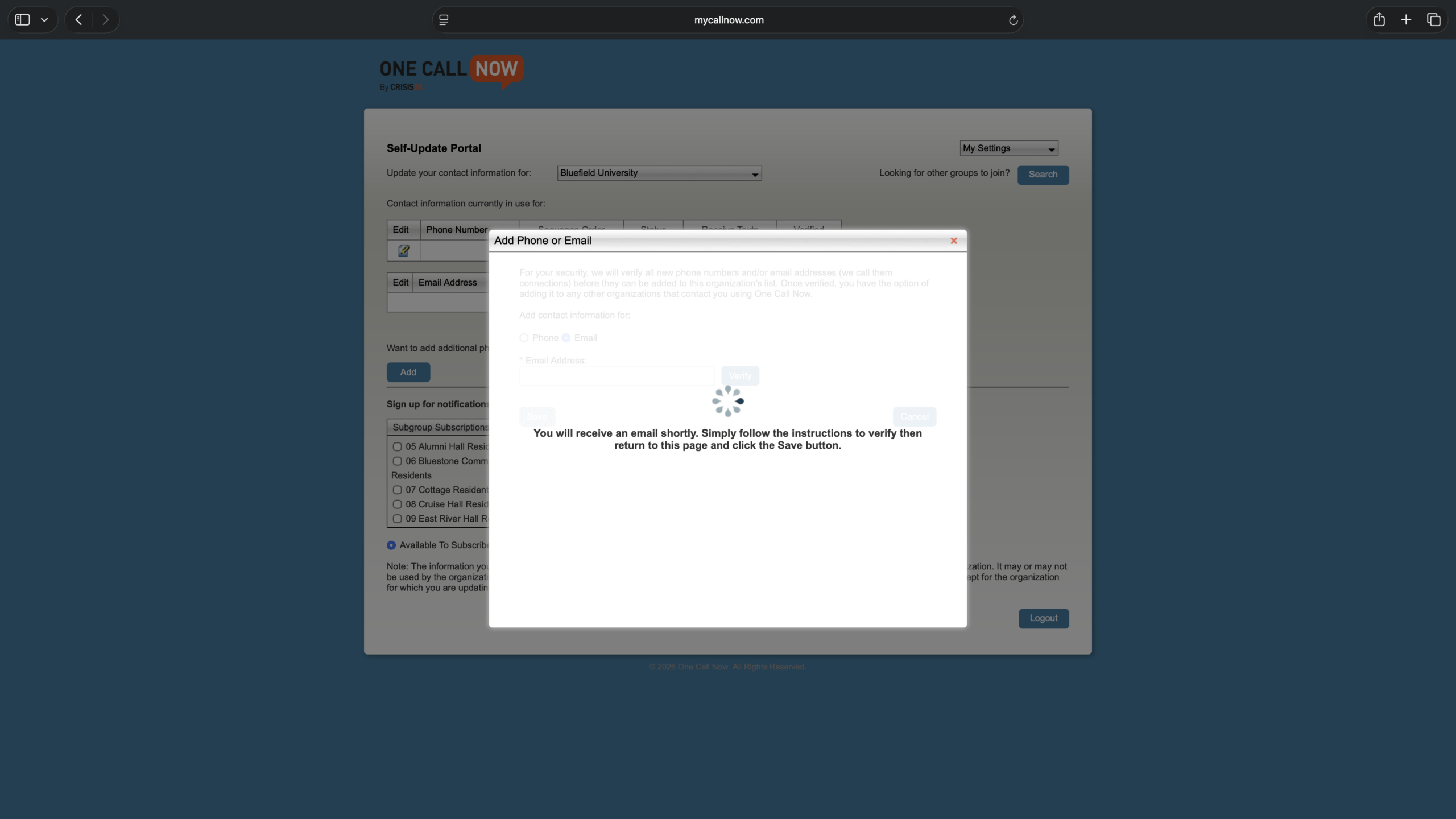
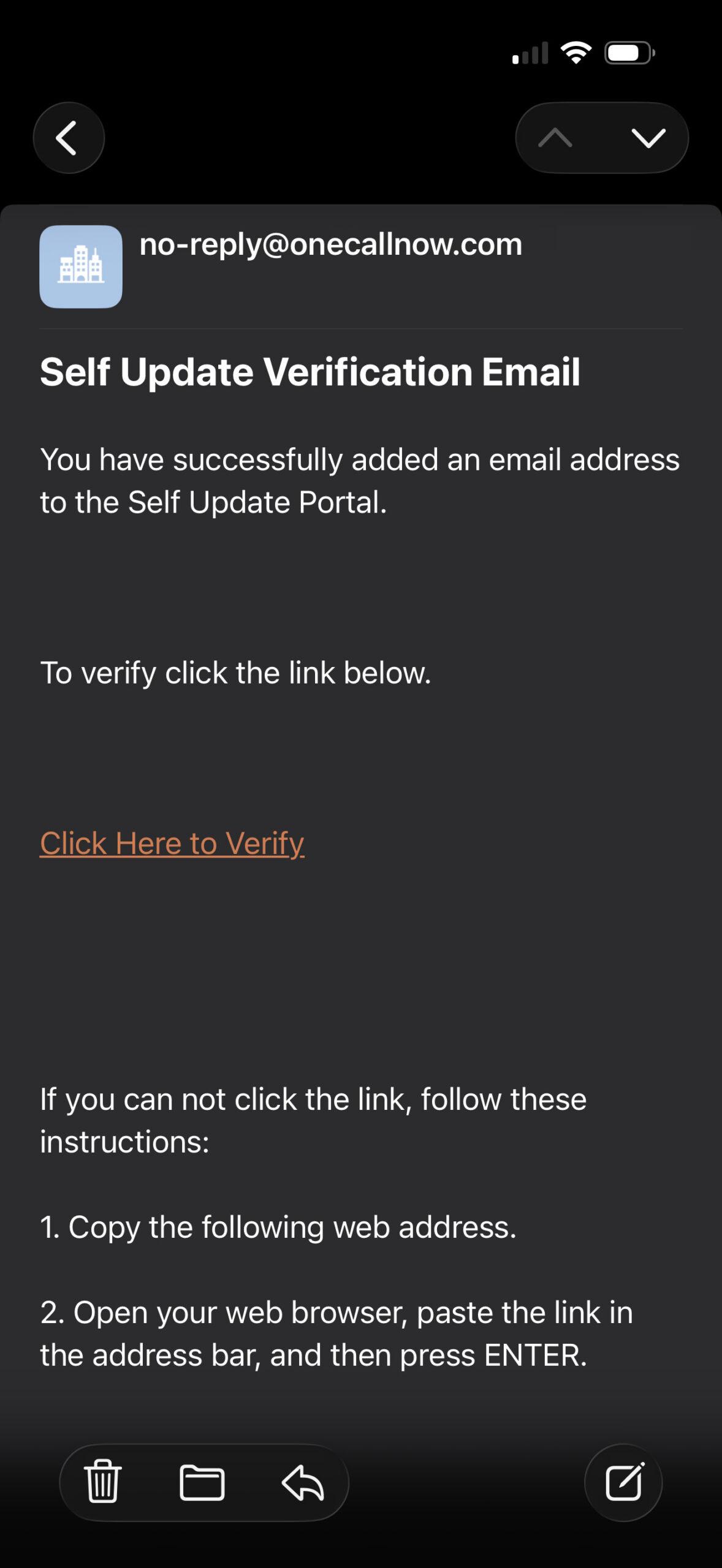
- Verify the email address using the link emailed to you by One Call Now.
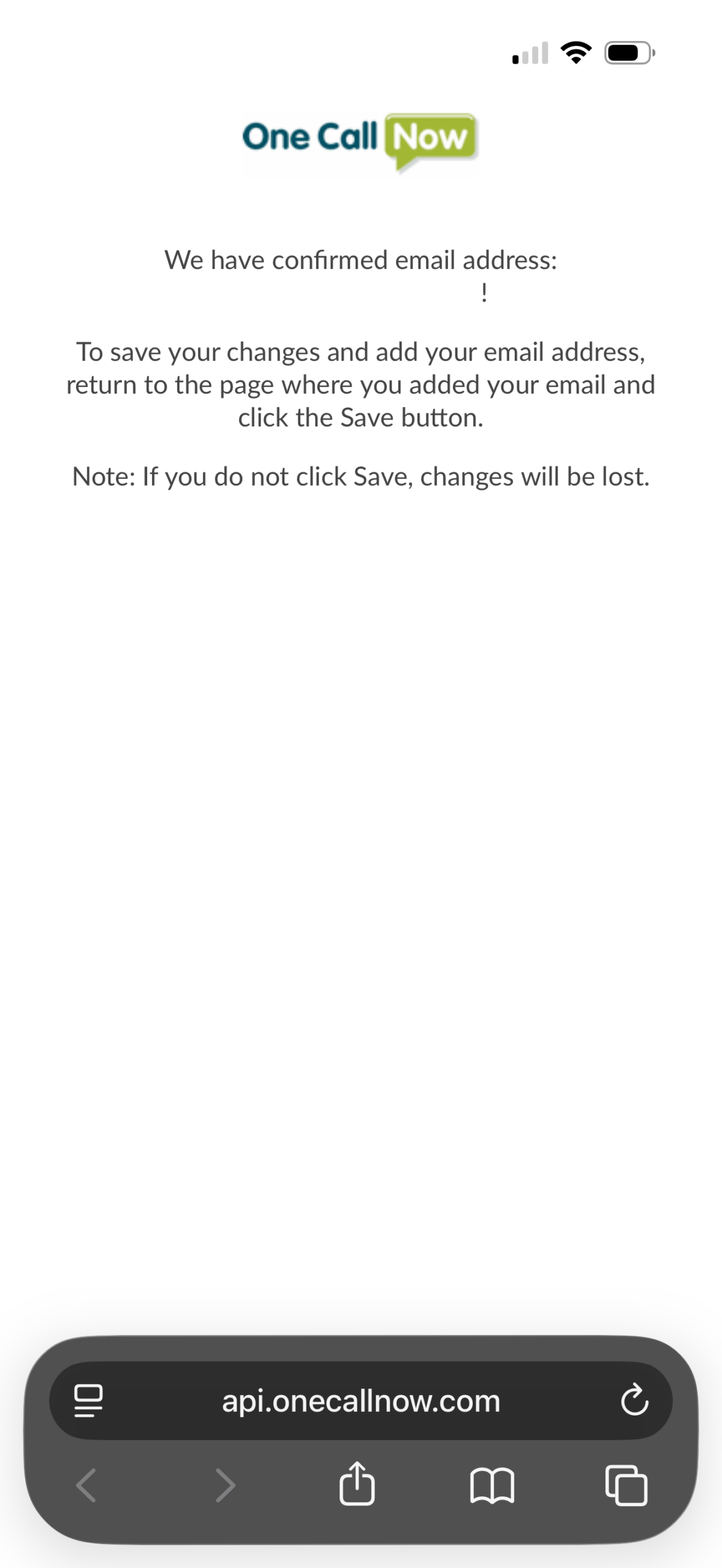
- Click Save.